 Information Technology Services
Support for hardware, software, accounts & more —
here to help you succeed.
Technical support for hardware, software, and more.
Select a service to begin.
🟡 Technical Support 🟡 Knowledge Base 🟡 System Status
For classroom support or time-sensitive issues, call 928-776-2168.
Most students and employees’ access YC online resources via the myYC portal, which is accessible from the yc.edu homepage (see below).

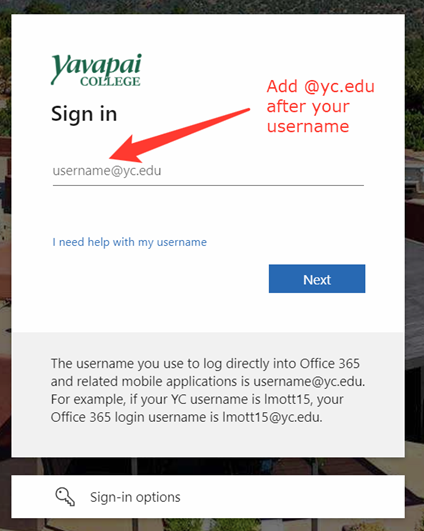
After clicking the myYC link, the new platform will appear and request login details in the format of “username@yc.edu.” It is mandatory to add @yc.edu after your username (see below).
New Sign-in Prompt
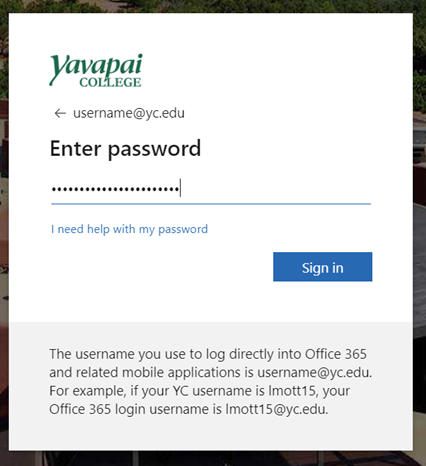
Enter YC Network Password
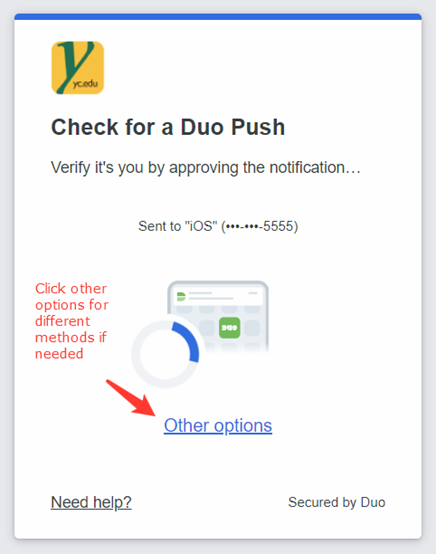
You may receive a Duo Security multi-authentication prompt, which is the same as our past procedure but with a new look and feel (see below), that you will need to respond to complete the login process.
New Duo Security Prompt
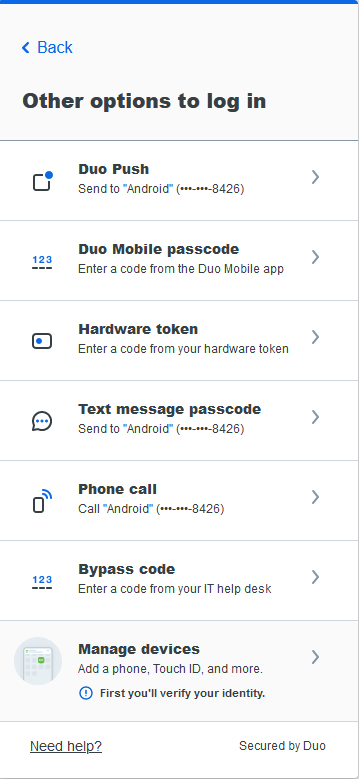
Duo Security Prompt – Other Options – Manage Devices
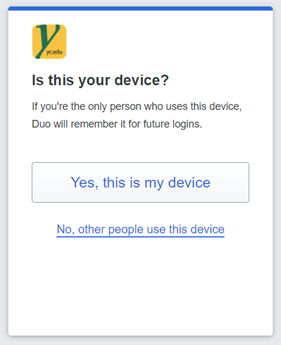
Duo Security – Device Prompt / Remember Device for 30 Days
🟢 Applications / Reauthentication
The switch to the Azure platform may require reauthentication for several applications and services. The following may require reauthentication:
Outlook and Office Applications: You may be prompted to reenter your username (username@yc.edu) and password after we switch over to the new authentication platform.
Mobile Devices: Email on mobile devices such as iPhones, Android Phones, and tablets may automatically be signed out after the switch and require a new login session. This can be done by providing the account login details within the account settings of the email app or by responding to a prompt from the application to reenter your username and password. Occasionally, the phone will need a restart before doing this. In rare instances, the account may need to be re-added to the phone if a restart will not resolve the issue.
OneDrive: OneDrive, the Microsoft cloud file storage application, may require a new login session. To do this, click the OneDrive cloud icon on the system tray in the lower-right corner of the screen, select Sign In, and provide the username and password in the standard format (username@yc.edu), ensuring to approve any Duo MFA prompt that may be pushed out.
Zoom: Zoom may require a new login session. To do this, open the Zoom application, select “Sign In with SSO,” enter the word Yavapai in the box, select “Continue,” and log into the web page that is presented to finish, ensuring the Duo MFA prompt is approved. This process applies to both mobile devices as well as the desktop application.
Zoom Calendar Integration: If you have integrated your Office 365 calendar with Zoom, you may need to reconfigure the service and reauthenticate to reconnect the calendar connection. To edit these settings, please navigate to the Zoom web portal > Profile > Others > Calendar and Contact Integration. Select Office 365 when prompted.
Miscellaneous: Although most experience changes are covered above, others are possible depending on many factors. For anything not already covered by name, the general step needed to resolve it is simply signing into your account with the username@yc.edu format, your current password, and your approval of the subsequent Duo MFA prompt push. If you encounter difficulties, please do not hesitate to reach out to us at helpdesk@yc.edu or 928.776.2168.
 Due to phishing attacks, fake emails, and the rise of cyber-attacks, it is critical to enable DUO provide 2-step verification on your YC student account today.
Technical Requests
- Zoom
- Getting Started with Zoom
- Phones
- Zoom phone tutorial
- Microsoft Bookings
- How to request MS Bookings Training pdf
- Working Remotely
- Telecommuting at YC
- VPN logon instructions pdf
- SecureCloud VMWare Guide pdf
- Troubleshooting home WiFi
- Server and Wireless Access
- Multifactor Authentication
- PTSS Media Control Guide pdf
- YC Electronic Form options login
- Password Assistance
- Computer Commons - Need access to a computer?
- Canvas – a mobile application is available in addition to the web application.
- Zoom- All students have access to basic Zoom accounts
- cloud.yc.edu - provides course software that is remotely accessible, and a full remote desktop. user guide
- Grammarly- Students can sign up for a free Grammarly account with their YC email.
- YC Portal/MyYC
- Student Support for Online Learning
 Report an cyber security concern or active incident to
(928) 717-7722 | infosec@yc.edu
- Cyber Security Awareness Training
- Phishing Awareness and Simulation
- Whitelisting/Blacklisting Coordination and Management
- Asset and Service Onboarding Security Reviews
- Compliance Reviews, Guidance, and Support (PCI, FERPA, HIPAA, GLBA, GDPR, etc.)
- Vulnerability Analysis and Remediation, Risk Management, Process and System Auditing
- Cyber Security Incident Response
- Providing Policy and Procedures
 ITS Mission: The mission of the Information Technology Services (ITS) Department is to increase the effectiveness of our institution in the areas of teaching, economic development, and cultural enrichment through the efficient use and cost-conscious management of information technology resources.
Organization chart login
Location: Prescott Campus, Bldg 6-102. Real time system status: status.yc.edu
Chief Information Officer: Patrick Burns
YC ITS Teams:
- Technology Support Services
- Provides direct support to constituents (Helpdesk)
- Responsible for the design, implementation, and maintenance of district presentation (audio/visual) systems
- Deploys and maintains all computer workstations/laptops and computer labs/classrooms
- Application Development
- Accountable for the district enterprise system (Ellucian Banner), myYC Portal, web services, single sign-on, and custom applications
- Systems and Networking Services
- Designs, implements, and maintains the wired and wireless network, storage, virtual desktops, and the phone system
- IT Security
- Responsible for protecting the College’s information assets by utilizing the latest cybersecurity tools and best practices
- Leads efforts related to information technology compliance
